> ## Documentation Index
> Fetch the complete documentation index at: https://docs.asa.so/llms.txt
> Use this file to discover all available pages before exploring further.
# Gorgias
> Connect Gorgias as your handover destination so escalations become support tickets your team can pick up in Gorgias.
When Asa hands a conversation to your team, Gorgias can receive it as a ticket instead of only showing an email card in the widget. Set this up in **Configuration**, not **Add Content** — Gorgias powers handover, not product training.
Navigate to **Configuration > Responses** in the sidebar, then open the **Handover** tab.
Under **Human Support Contact**, choose **Gorgias** from the destination dropdown.
In your [Gorgias](https://www.gorgias.com/) helpdesk, go to **Settings > REST API**.
Create or copy an API key for the account that should own escalated tickets. You need:
| Field | Where to find it |
| ------------------------- | -------------------------------------------------------------------------------- |
| **Gorgias Subdomain** | The subdomain in your helpdesk URL — e.g. `acme` from `https://acme.gorgias.com` |
| **Gorgias Account Email** | Email for the Gorgias user who owns the API key |
| **Gorgias API Key** | **Settings > REST API** in Gorgias |
Back in Asa, click **Connect** next to the Gorgias handover option.
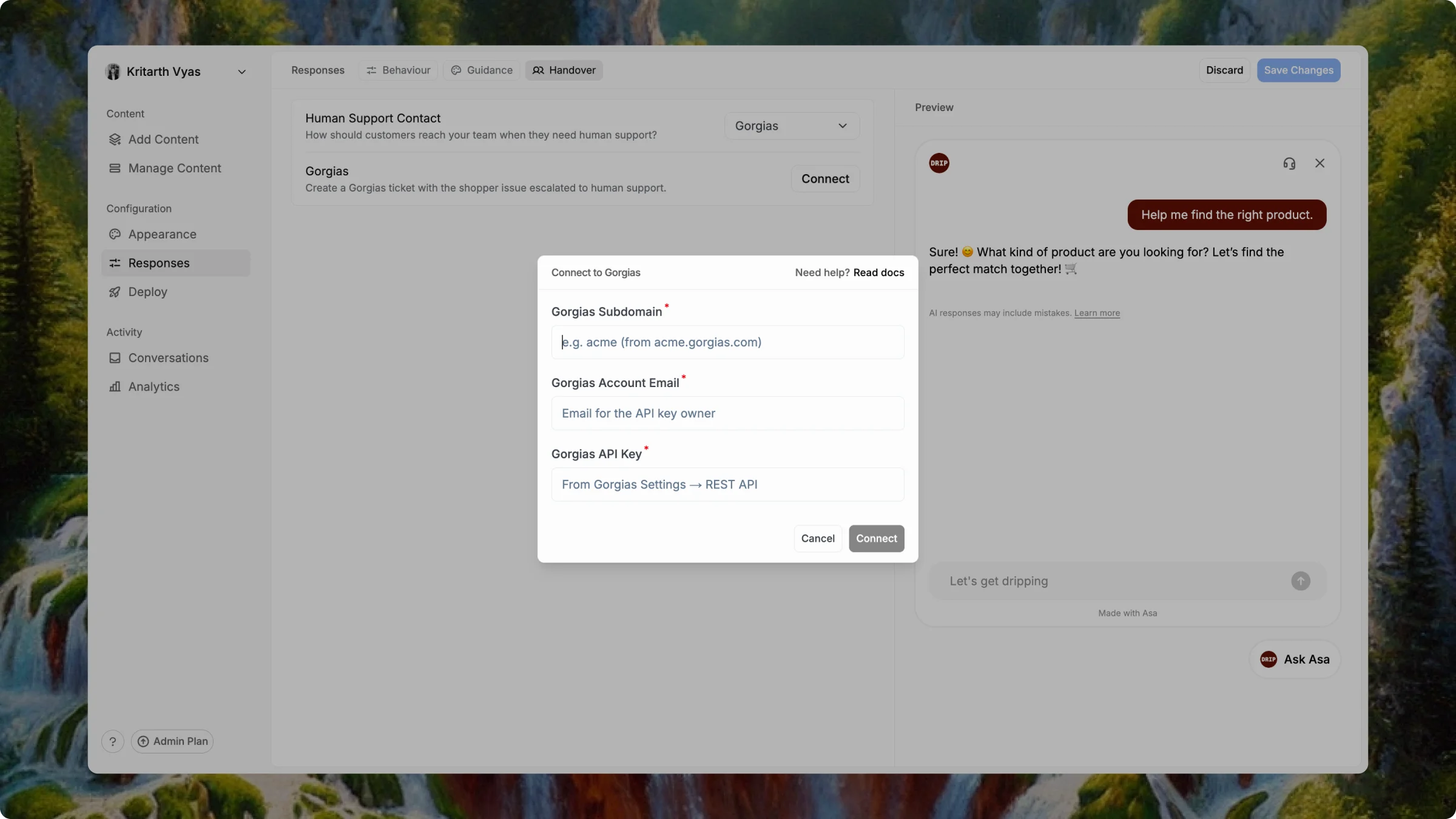 Enter your credentials:
| Field | What to paste |
| ------------------------- | -------------------------------------- |
| **Gorgias Subdomain** | Your helpdesk subdomain (e.g. `acme`) |
| **Gorgias Account Email** | Account email for the API key owner |
| **Gorgias API Key** | API key from Gorgias REST API settings |
Click **Connect**. When setup succeeds, the Gorgias row shows **Connected**.
Click **Save Changes** in the top right to confirm your handover settings after Gorgias connects successfully.
In **Activity > Conversations**, a redirected Gorgias handover shows ticket details and an **Open in Gorgias** link on the conversation.
## How handover works with Gorgias
* **Guidance** controls *when* Asa escalates — under **Configuration > Responses > Guidance**, use **Handover to Team** to define the lines Asa should not cross alone.
* **Handover** controls *where* shoppers go — with Gorgias selected, escalations create a ticket in your helpdesk.
* If ticket creation fails, Asa still records the escalation and falls back to your **Email Contact** handover so the shopper is not left without a path to support.
Pair Gorgias with clear Handover to Team instructions — for example, refunds, damaged orders, or explicit requests to speak with a person.
## Notes
* Disconnecting Gorgias restores handover to **Email Contact** until you choose another destination.
* Use the same Gorgias subdomain, email, and API key you use in the Gorgias admin — typos are the most common connection failure.
If you need help, reach out at [help@alphablocks.ai](mailto:help@alphablocks.ai).
Enter your credentials:
| Field | What to paste |
| ------------------------- | -------------------------------------- |
| **Gorgias Subdomain** | Your helpdesk subdomain (e.g. `acme`) |
| **Gorgias Account Email** | Account email for the API key owner |
| **Gorgias API Key** | API key from Gorgias REST API settings |
Click **Connect**. When setup succeeds, the Gorgias row shows **Connected**.
Click **Save Changes** in the top right to confirm your handover settings after Gorgias connects successfully.
In **Activity > Conversations**, a redirected Gorgias handover shows ticket details and an **Open in Gorgias** link on the conversation.
## How handover works with Gorgias
* **Guidance** controls *when* Asa escalates — under **Configuration > Responses > Guidance**, use **Handover to Team** to define the lines Asa should not cross alone.
* **Handover** controls *where* shoppers go — with Gorgias selected, escalations create a ticket in your helpdesk.
* If ticket creation fails, Asa still records the escalation and falls back to your **Email Contact** handover so the shopper is not left without a path to support.
Pair Gorgias with clear Handover to Team instructions — for example, refunds, damaged orders, or explicit requests to speak with a person.
## Notes
* Disconnecting Gorgias restores handover to **Email Contact** until you choose another destination.
* Use the same Gorgias subdomain, email, and API key you use in the Gorgias admin — typos are the most common connection failure.
If you need help, reach out at [help@alphablocks.ai](mailto:help@alphablocks.ai).