

Review conversations
Navigate to Activity > Conversations in the sidebar. Every shopper conversation is listed here.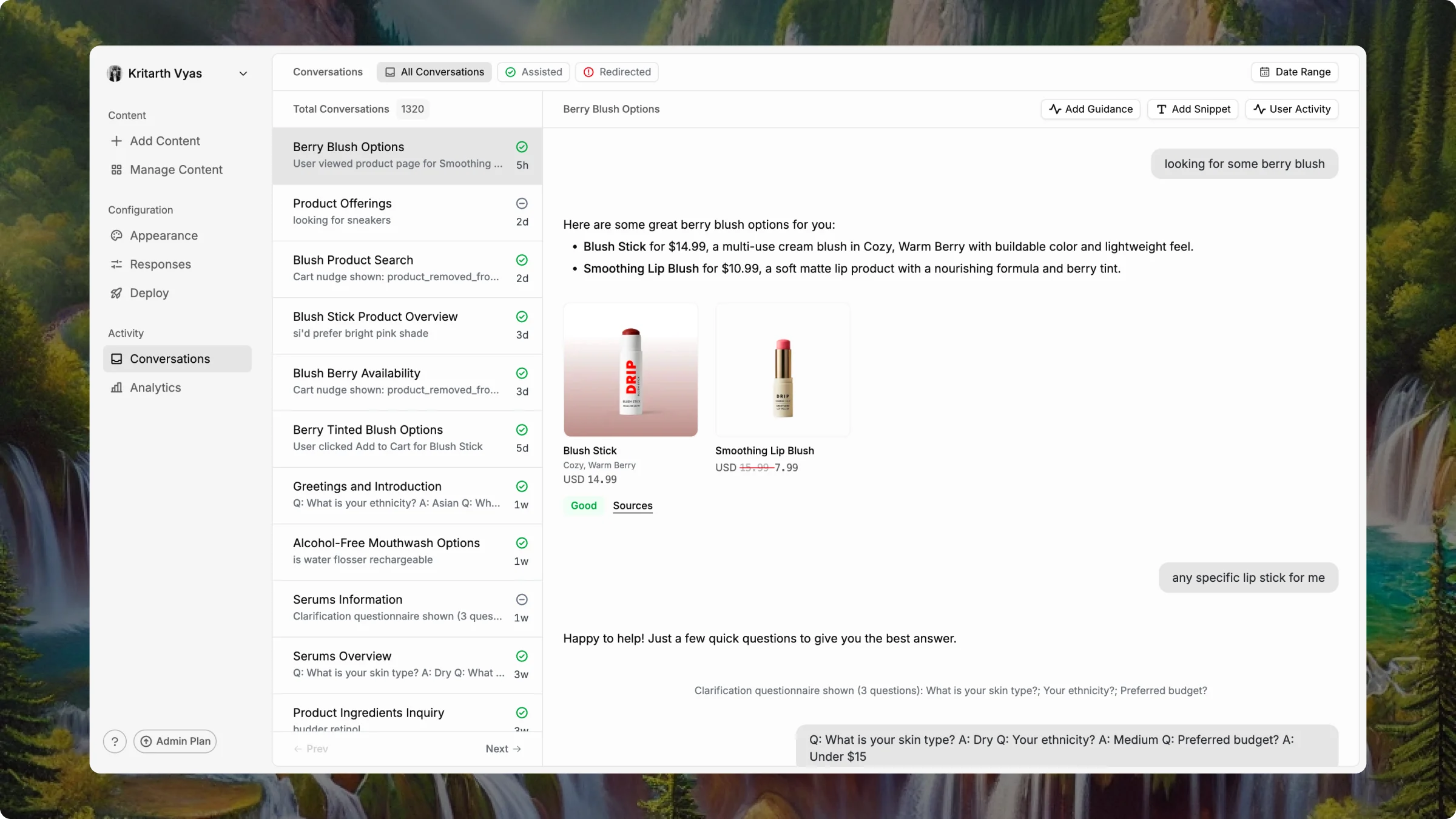
Each row shows a title, a one-line preview, and how long ago it happened. The badge on the right is the conversation status:
Read a conversation
Open any conversation to see what happened between Asa and a real shopper. Four areas to review:The conversation
Does the reply sound like your brand? Is it accurate? Is the product recommendation relevant?Shopper behavior events
A trail of storefront actions during and after the chat — product views, add to cart, remove from cart, cart nudges. This shows whether Asa influenced behavior, not only whether the shopper replied.Good and Sources
Four areas to review:The conversation
Does the reply sound like your brand? Is it accurate? Is the product recommendation relevant?Shopper behavior events
A trail of storefront actions during and after the chat — product views, add to cart, remove from cart, cart nudges. This shows whether Asa influenced behavior, not only whether the shopper replied.Good and Sources
- Good — mark a strong reply as a quality example.
- Sources — trained content Asa used for that answer. Wrong answer? Sources tell you if it is a knowledge gap or poor source material.
Check shopper activity
Click User Activity in the top right of a conversation for the full picture of that shopper.
Know what to look for
The inbox is a diagnostic tool, not a log. In your first week, watch for:Repeated handover topics
Same handover theme (returns, one SKU, an ingredient) → add or improve training, then retrain.Off-brand replies
Tighten Configuration > Responses > Guidance → Communication Style.Rephrased questions
Same question asked three ways → first answer was weak. Check Sources — the knowledge may exist but needs clearer structure.Assisted chats with add-to-cart
Behavior events showing Add to Cart after Asa helped → note the question type and ensure strong coverage there.For volume and trends over time, open Activity > Analytics once traffic grows.
In most months, one shopper equals one conversation. That mapping is rarely wrong — when conversation counts run slightly ahead of unique shoppers, it is usually because the same person had both a handover thread and a separate Asa-resolved chat, or because a session or storage reset on their device started a new conversation. See How conversations are counted for details.