

Connect your Notion account
Navigate to Add Content in the sidebar, open the Apps tab, and click Connect on the Notion card.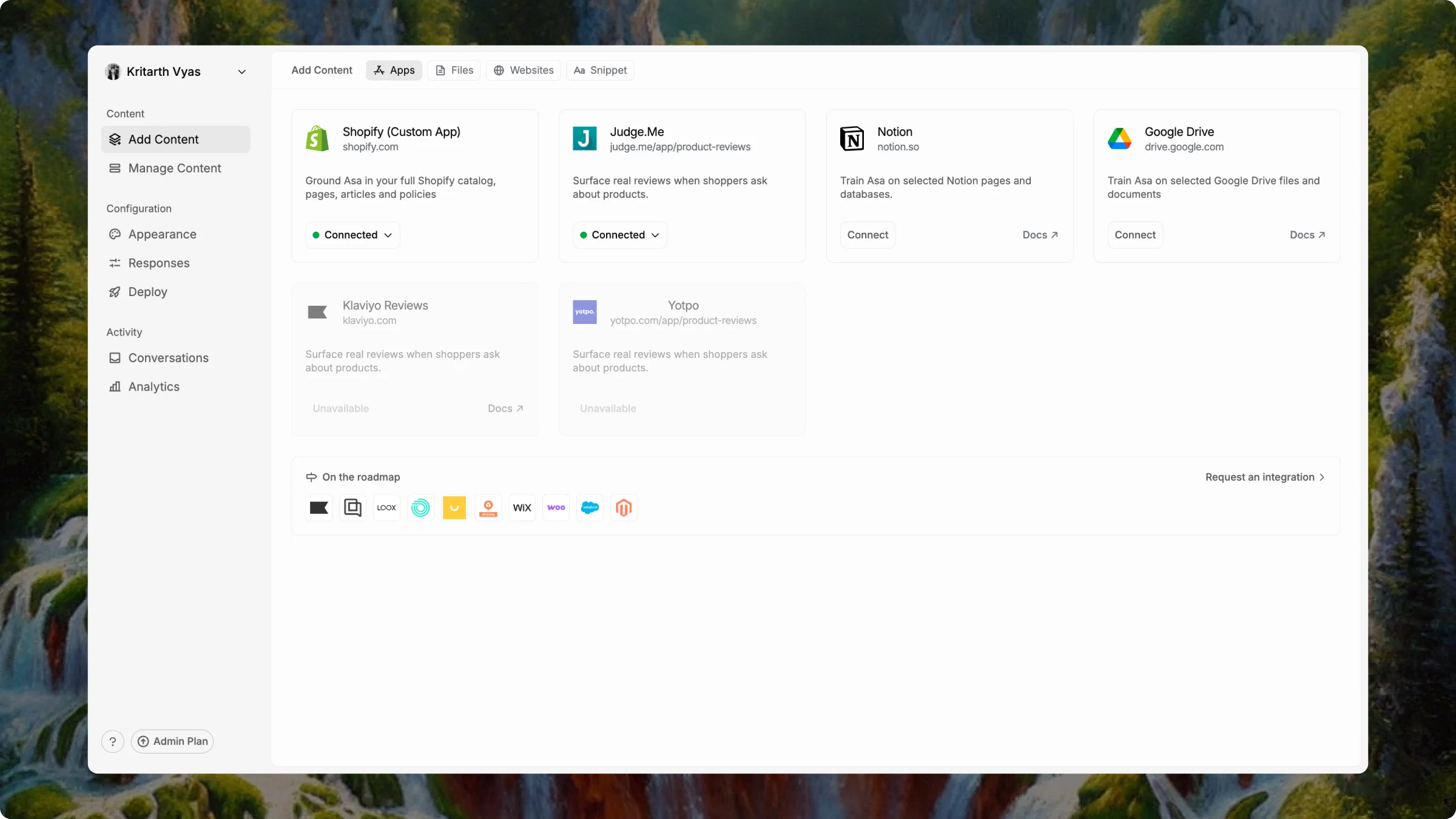
Authorizing Notion does not train Asa on your content yet. You choose which pages to train in the next step.
Choose pages and train
After OAuth completes, the Allow Asa to access these Notion pages dialog opens automatically. Select the pages you want Asa to learn from, then click Proceed. Training usually takes 1–2 minutes depending on how much content you selected.
Go to Manage Content and confirm your Notion sources appear with a Trained status.
Keep content up to date
If you need help, reach out at help@alphablocks.ai.