

Open Handover settings
Navigate to Configuration > Responses in the sidebar, then open the Handover tab.Under Human Support Contact, choose Gorgias from the destination dropdown.
Get your Gorgias API credentials
In your Gorgias helpdesk, go to Settings > REST API.Create or copy an API key for the account that should own escalated tickets. You need:
Connect Gorgias in Asa
Back in Asa, click Connect next to the Gorgias handover option.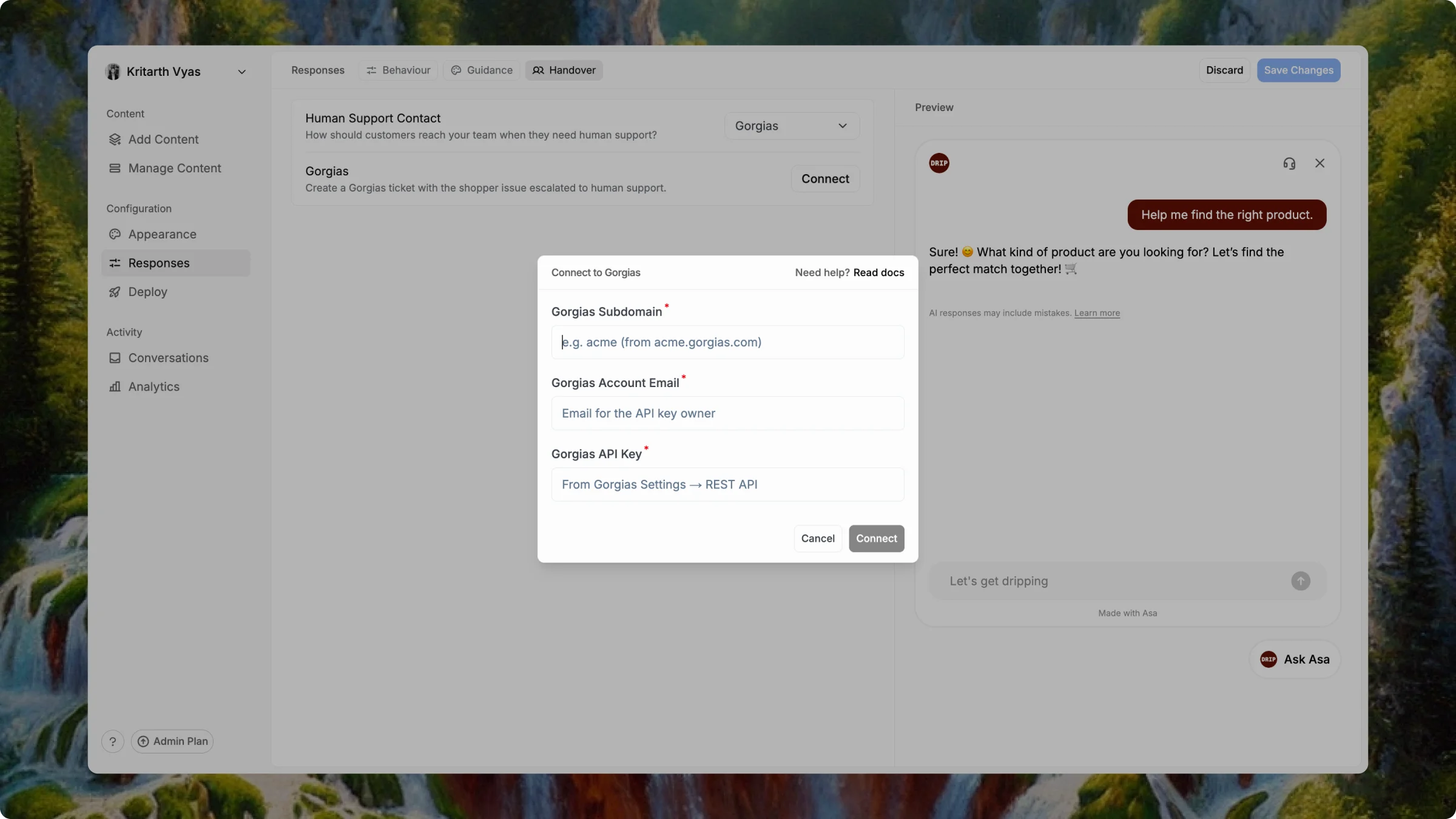
Click Connect. When setup succeeds, the Gorgias row shows Connected.
Click Save Changes in the top right to confirm your handover settings after Gorgias connects successfully.
In Activity > Conversations, a Gorgias handover shows ticket details and an Open in Gorgias link on the conversation.
How handover works with Gorgias
- Guidance controls when Asa escalates — under Configuration > Responses > Guidance, use Handover to Team to define the lines Asa should not cross alone.
- Handover controls where shoppers go — with Gorgias selected, escalations create a ticket in your helpdesk.
- If ticket creation fails, Asa still records the escalation and falls back to your Email Contact handover so the shopper is not left without a path to support.
Notes
- Disconnecting Gorgias restores handover to Email Contact until you choose another destination.
- Use the same Gorgias subdomain, email, and API key you use in the Gorgias admin — typos are the most common connection failure.